December 15, 2013
I recently joined the Creative Team for Kissing Kate.
Kissing Kate, aka Cat, has lots of beautiful kits, and I'm thrilled and honoured she asked me to be on her CT team!!
Kissing Kate sells her kits at PFD and The Art of Spazz store.
The first kit I got to play with was this pretty winter kit called Winter Dreamin.
I made this tag, using the artwork of Alex Prihodko.

TUTORIAL - WINTER DREAMS
This tutorial was written by me using PSP X, but any version should work.
Resemblance to any other tutorial is purely coincidental.
This tutorial assumes a good knowledge of PSP and tagging.
Supplies:
Tube of choice. I am using the artwork of Alex Prihodko, license and tube available at PFD.
Kit: PTU kit Winter Dreamin by Kissing Kate, available at PFD or The Art of Spazz store.
Mask: Xmas Mask 06 by Vaybs, available here
Font: Champignon, available here
Unless otherwise stated, I have used a Drop Shadow with settings of: 2,2,30,5, color black.
For sharpening resizing tube/elements, I have used Unsharp Mask with settings of: Radius 3, Strength 30, Clipping 3, Luminance Only unchecked.
For sharpening resizing tube/elements, I have used Unsharp Mask with settings of: Radius 3, Strength 30, Clipping 3, Luminance Only unchecked.
Let's go!
Open new image 650 x 650, flood fill with white.
Add a new layer, Select All. Open Paper 6, copy and Paste Into Selection.
Open DBV Xmas Mask 06, apply mask. Merge layer group, and resize by 103%.
Duplicate mask layer twice, merge mask layers.
Add a new layer, Select All. Open Paper 6, copy and Paste Into Selection.
Open DBV Xmas Mask 06, apply mask. Merge layer group, and resize by 103%.
Duplicate mask layer twice, merge mask layers.
Open Frame 3, copy and paste as a new layer, above mask layer, resize by 80%, sharpen, duplicate. Add a drop shadow to original wreath layer.
Open Element 19, copy and paste as a new layer above wreath layers, resize by 70%, sharpen, mirror. Place to the left, add a drop shadow. See my tag for placement of all elements.
Open Element 1, copy and paste as a new layer above the tree layer, resize by 80%, sharpen. Place to the lower left. Duplicate, mirror. Add a drop shadow to both layers, but change the opacity to 10% for these 2 snow layers.
Open Element 6, copy and paste as a new layer, resize by 30%, sharpen. Place behind the snow layers, to the left. Duplicate layer, mirrow, apply a drop shadow (back to original drop shadow with opacity of 30%).
Paste Element 6 again, resize by 30%, place behind the snow layers, above and to the right of the first Element 6 layer. Duplicate, mirror, apply a drop shadow to both layers.
Paste Element 6 again time, resize by 30%, place behind the first snow layer, to the bottom, see my tag for placement. Duplicate, mirror, apply a drop shadow to both layers.
Paste Element 6 again one more time, resize by 30%, place behind the first snow layer, to the bottom centre, see my tag for placement. Duplicate, mirror, apply a drop shadow to both layers.
Open Element 62, copy and paste as a new layer, place above the tree layer, see my tag for placement. Add a drop shadow.
Open Element 55, copy and paste as a new layer, resize by 30%, sharpen, place above tree and bush layers, to the lower left. Copy and paste 3 times, and place each layer just peeking out from under the snow and leaf layers. Duplicate all, mirror, and apply a drop shadow to all layers.
Open Element 30, resize by 90%, place above the tree layer, in the upper half of the tag, see my tag for placement.
Open Element 58, resize by 90%, place above all layers and in about the middle of the tag.
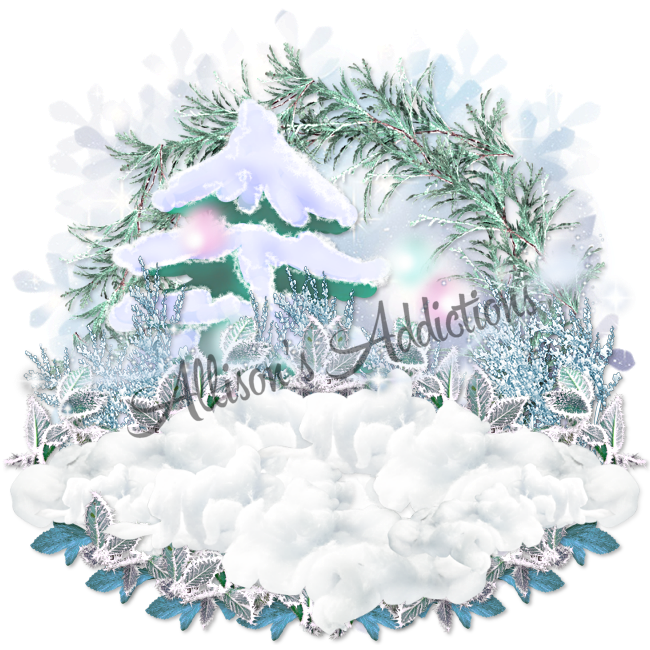
See the image below for help in placement.
Copy and paste your tube, resize by 48% (or other percentage to your liking if you use a different tube), sharpen. Place above all other layers, just to the right. Duplicate tube layer. Apply a Gaussian Blur of 5 to duplicated layer. With original tube layer active, Select All - Float - Invert Selection. Make your duplicated tube layer active, hit Delete, then Select None. Apply a Blend Mode of Soft Light to your duplicated tube layer. Duplicate your duplicate tube layer, change the Blend Mode of this second duplicate layer to Screen, and change the opacity to 30%. Apply a drop shadow to your original tube layer.
Copy and paste the following elements as new layers, resizing with the indicated percentages. Duplicate and mirror where applicable, using my tag for placement. Sharpen and apply drop shadows to all.
Element 9: 50%
Element 15 and 24: 17%
Element 4: 30%
Element 45: 45%
Element 28 and 36: 15%
Element 9: 50%
Element 15 and 24: 17%
Element 4: 30%
Element 45: 45%
Element 28 and 36: 15%
Add proper copyright.
Add your name.
I used Font Champignon in white, with an Eye Candy Gradient Glow of width 3, colour teal (colour from one of the elements to match), and a drop shadow (with opacity of 15% this time).
Delete your white background layer, and save as a png.
Delete your white background layer, and save as a png.
DONE!!
I hope you've enjoyed this tut.
If you have any questions or find a mistake, please feel free to send me an email.
Also, I'd love to see any tags made using this tut, so again, please feel free to email me your creations, or post the link to your tag in the comments below.
~Allison~
Subscribe to:
Post Comments
(Atom)
Thank you Allison, great tut and lovely of you to say nice things ♥
ReplyDelete